

What is Bulk Email Validation?
Addresser's Bulk Email Validation lets you upload a CSV file containing up to 10,000 email addresses and receive a detailed results file showing which addresses are valid, disposable, catch-all, or undeliverable — with specific failure reasons for each.
CSV File Requirements
# 1. One email address per row
# 2. Minimum 2 columns: record ID + email address
# 3. Extra columns are allowed but ignored
# 4. Maximum 10,000 rows including the header
col_1,col_2
E001,matthew.martinez1861@yahoo.com
E002,matthew.lee3898@hotmail.com
E003,robert.martin3557@aol.com
Uploading Your File
Follow these steps from login through to successful file submission.
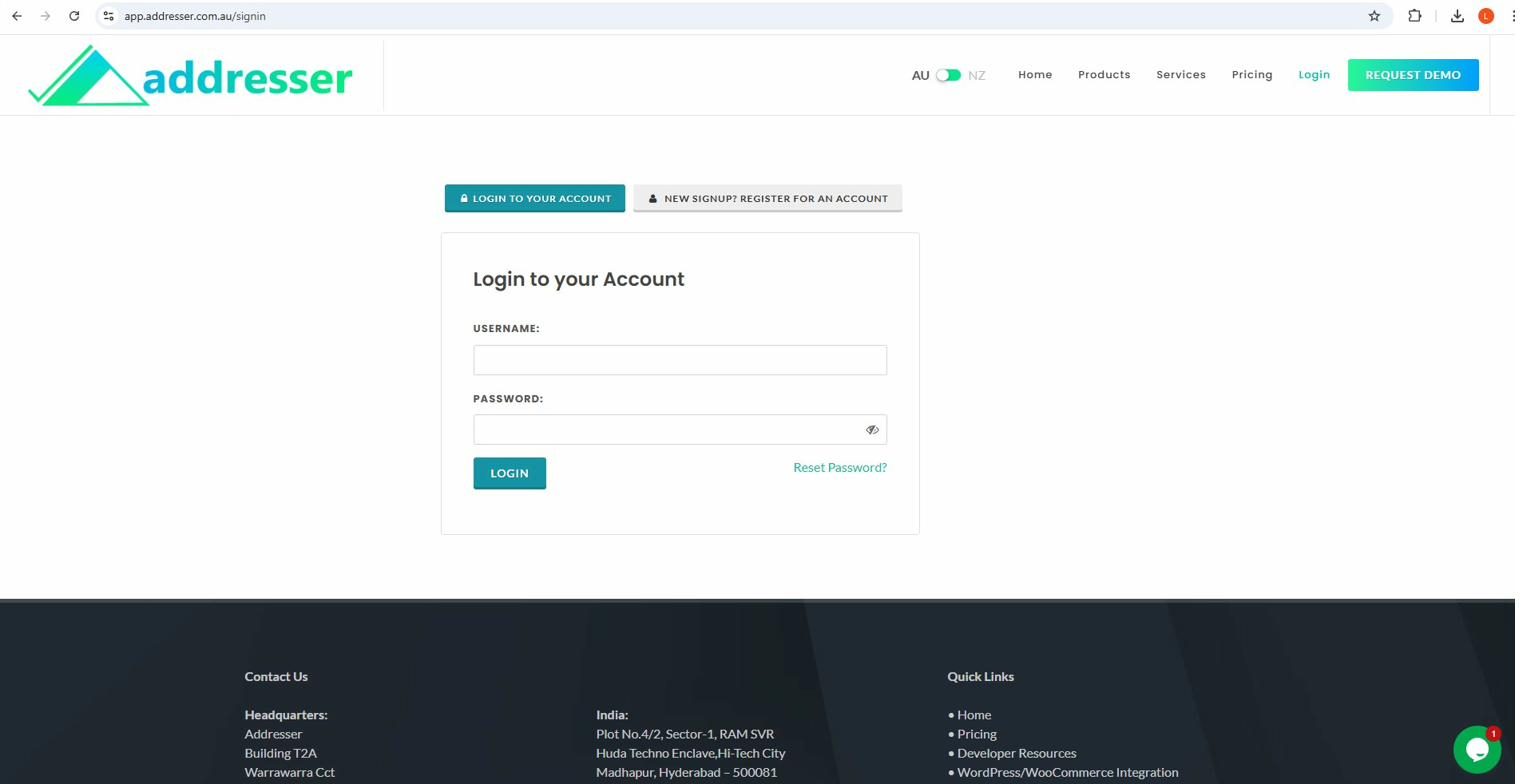
Log In to Your Account
Go to app.addresser.org/signin. Enter your username and password then click LOGIN. Use Reset Password if you have forgotten your credentials.
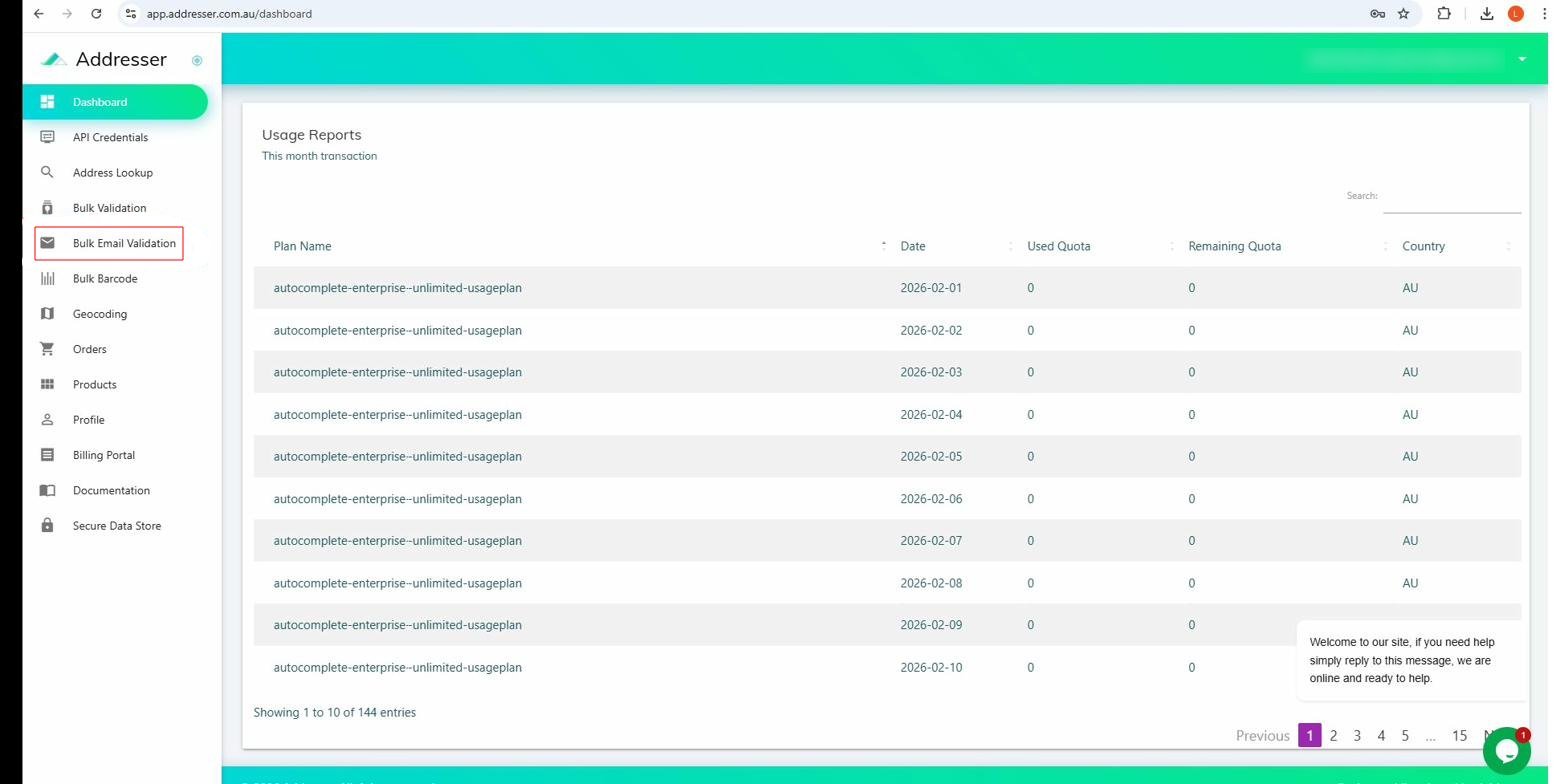
Navigate to Bulk Email Validation
After logging in you land on the Dashboard showing Usage Reports. In the left-hand sidebar, click Bulk Email Validation.
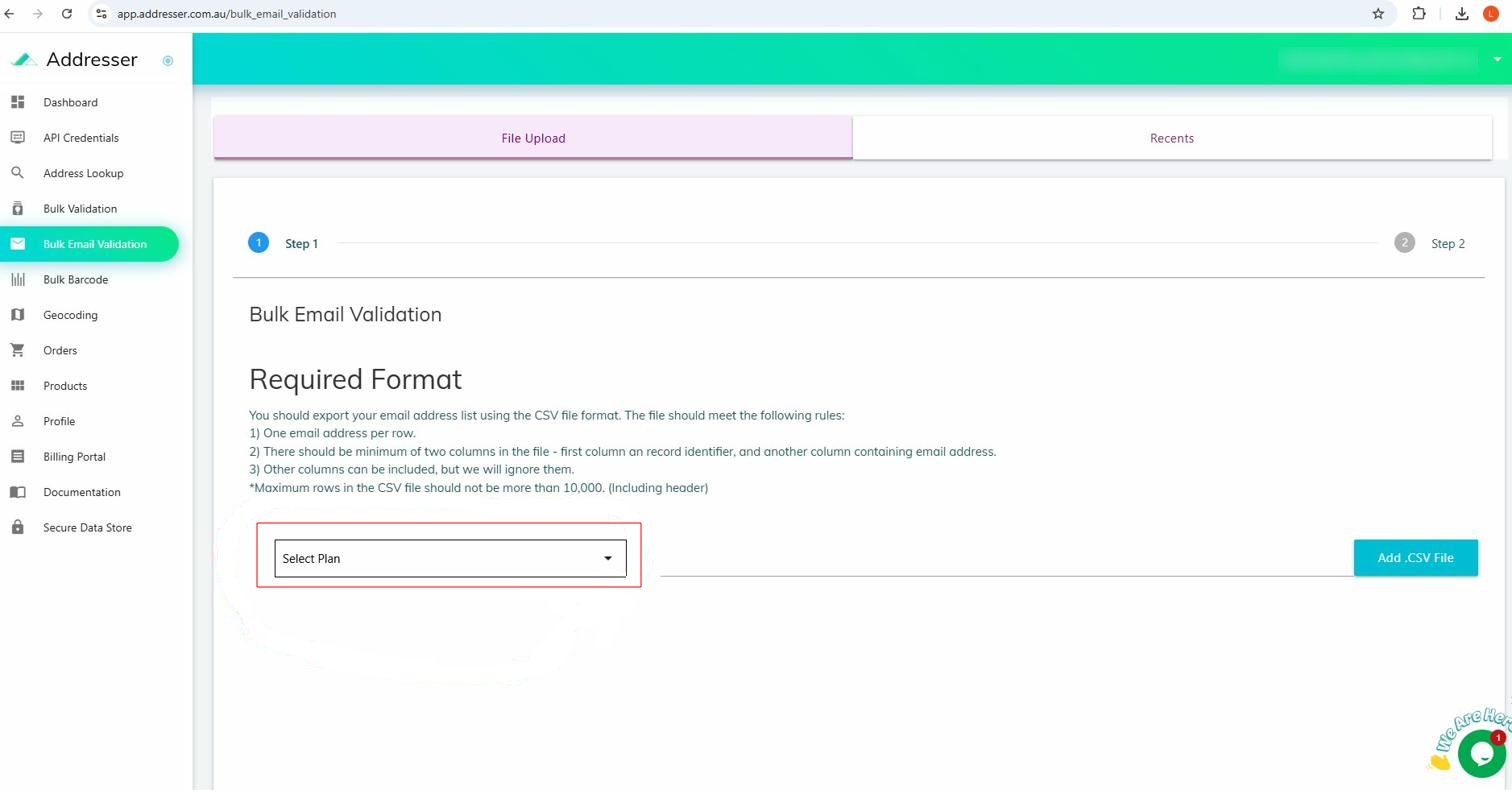
Bulk Email Validation Page
The File Upload tab opens, showing the required CSV format rules. Review the requirements before proceeding.
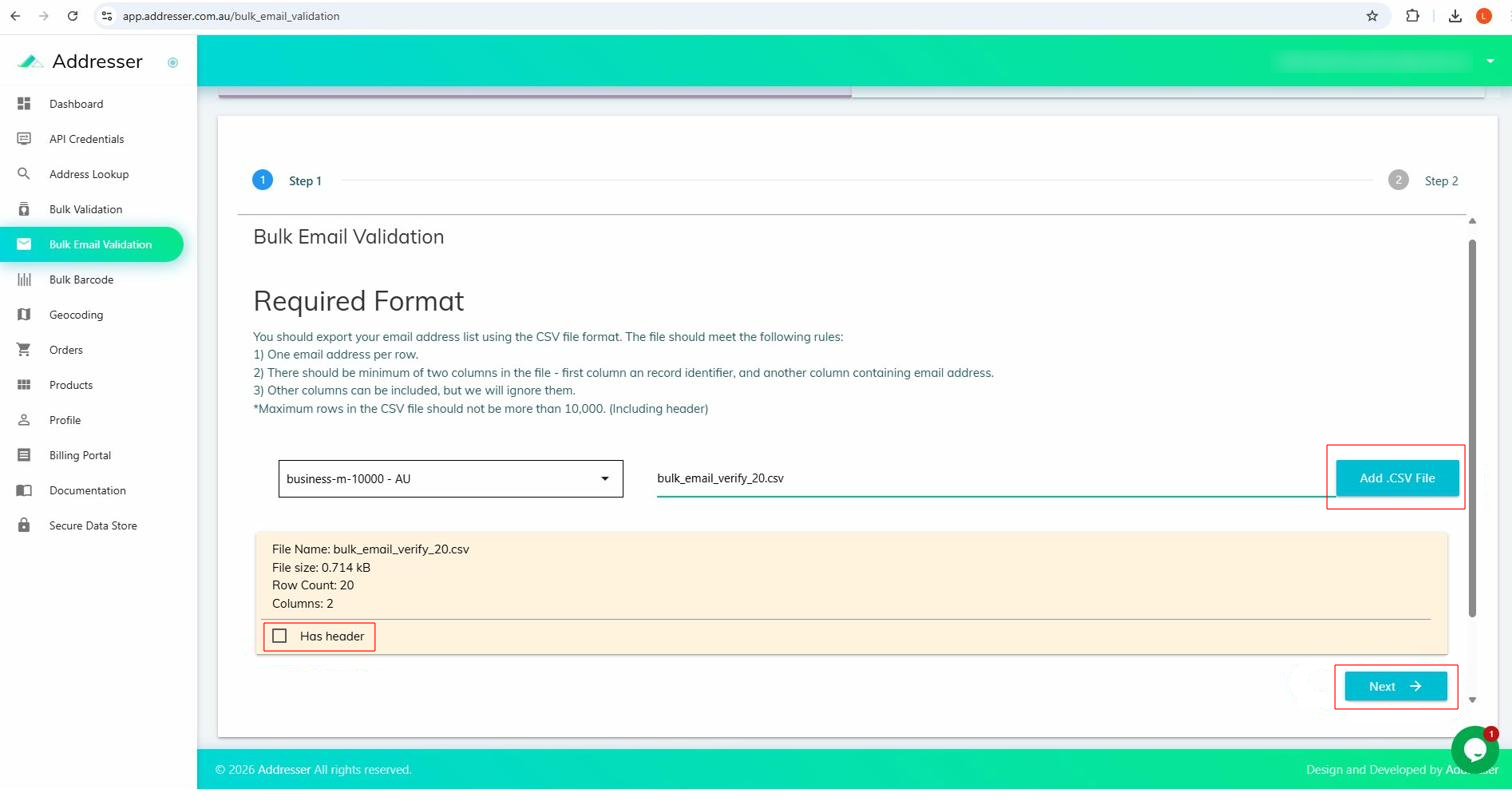
Select Plan, Upload CSV & Set Header Option
Open the Select Plan dropdown (circled) and choose your subscription plan (e.g. business-m-10000 – AU). Click Add .CSV File and choose your file. File details appear in the preview. Tick Has header if your CSV has a header row, then click Next →.
Select the Email Column
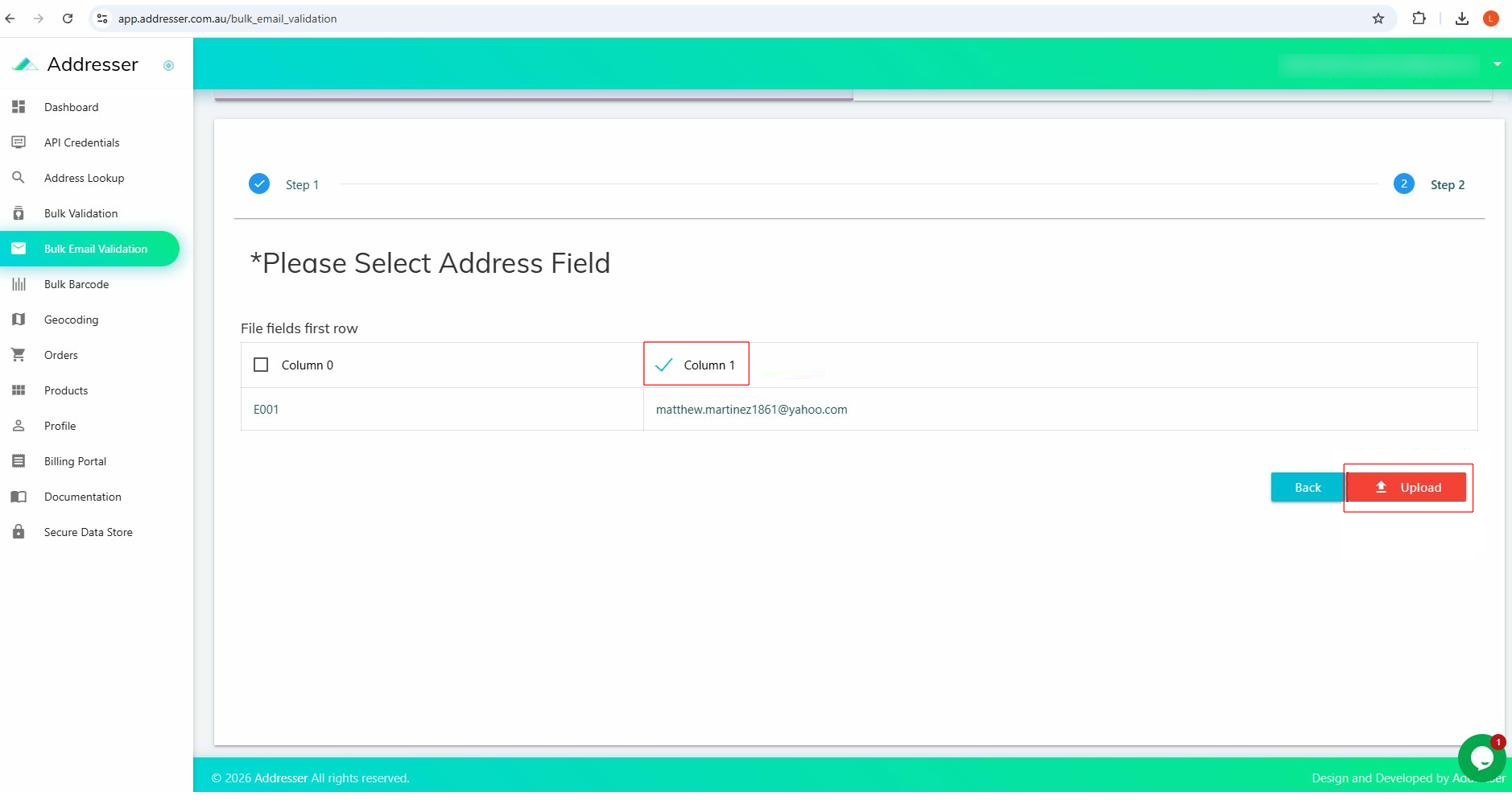
The system shows the first row of your CSV so you can identify which column contains email addresses. Click that column — a blue tick ✓ confirms selection (e.g. Column 1). Then click the red Upload button.
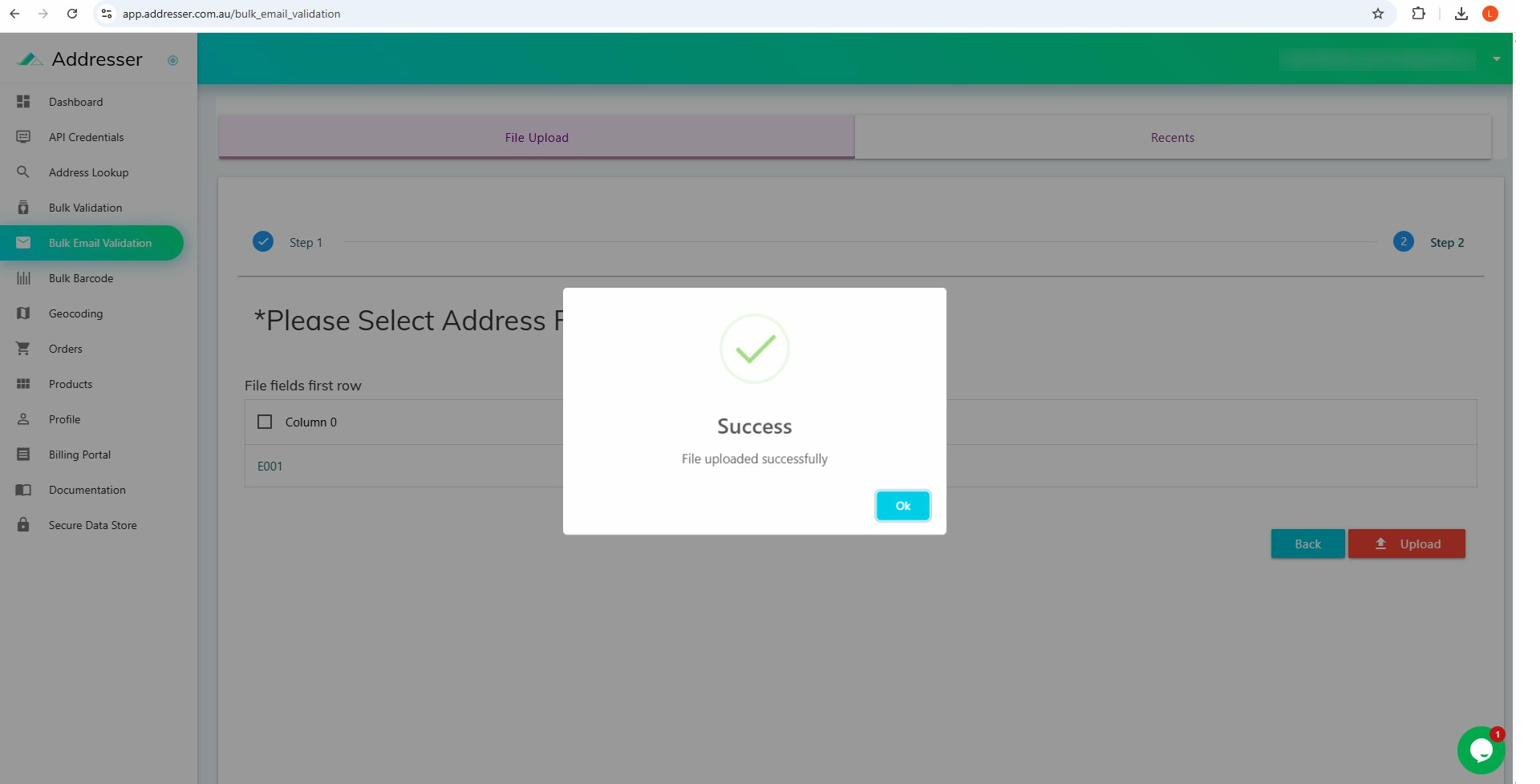
Upload Success Confirmation
A green-tick dialog confirms: "File uploaded successfully." Click Ok to dismiss. Your file is now queued for processing.
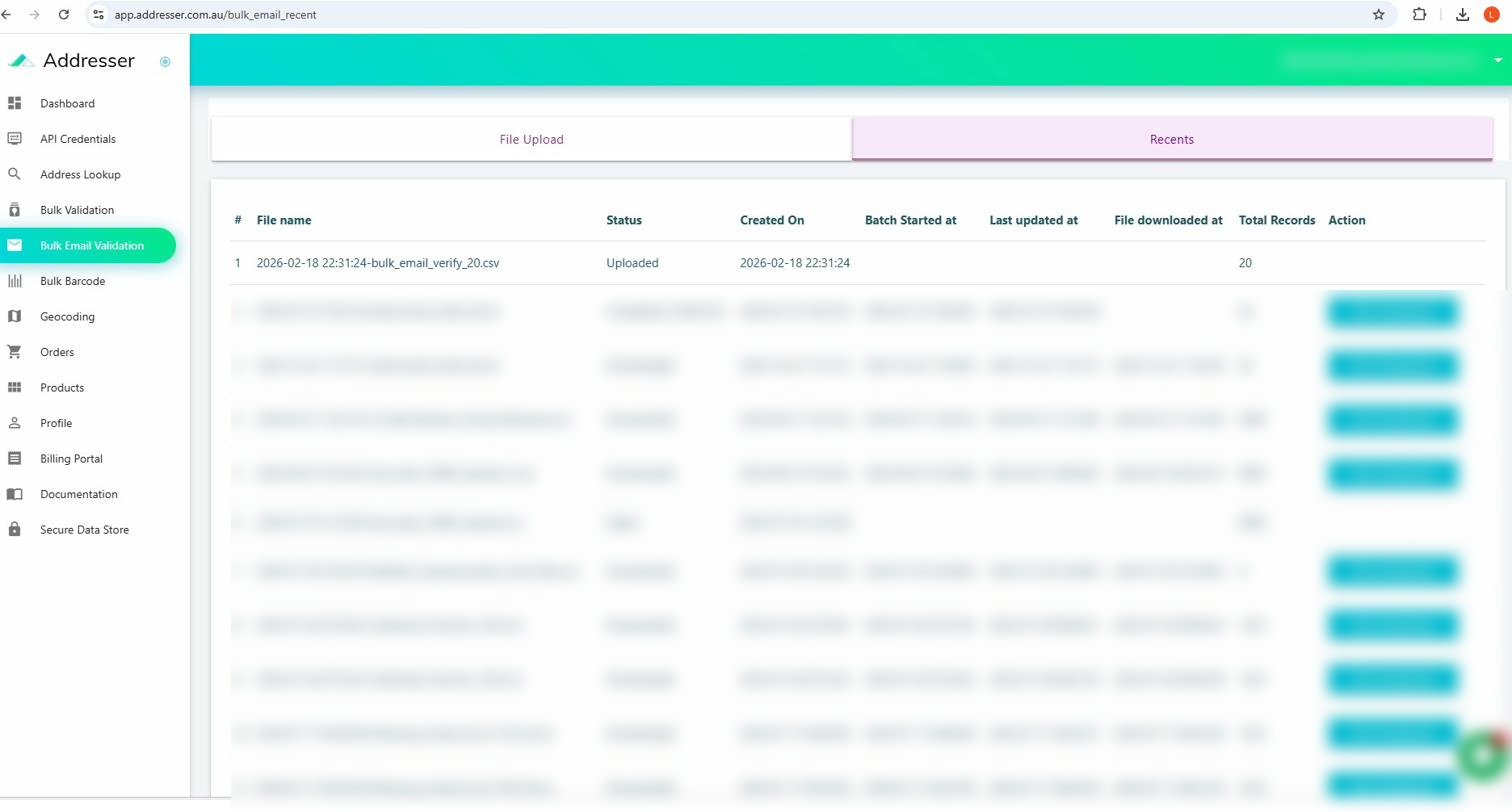
Verify in the Recents Tab
Click the Recents tab. Your file appears at the top with status Uploaded. The status will update automatically as processing progresses.
Email Notifications
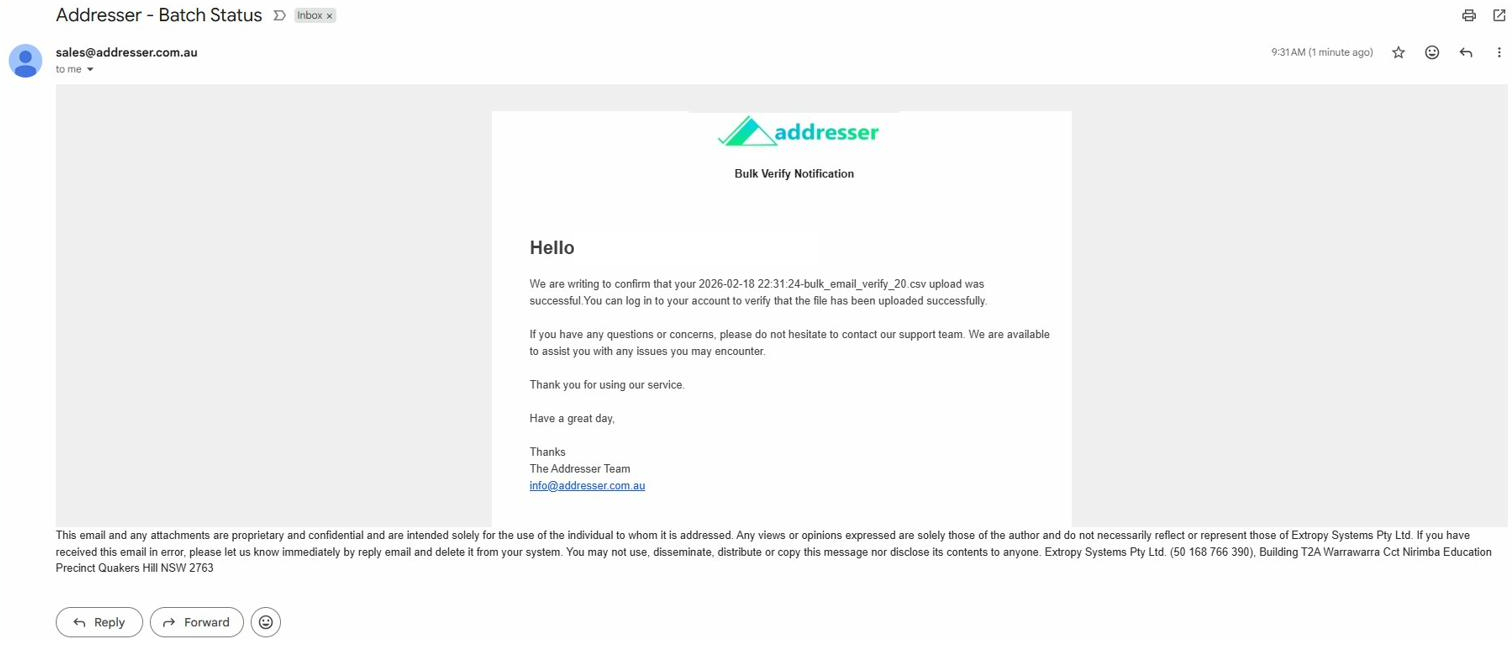
Addresser automatically sends two emails to keep you informed. Both arrive from sales@addresser.org with subject "Addresser – Batch Status".
📤 Email 1 – Upload Confirmation
Sent within minutes of a successful upload. Confirms your CSV has been received and is queued. No action is required at this stage.
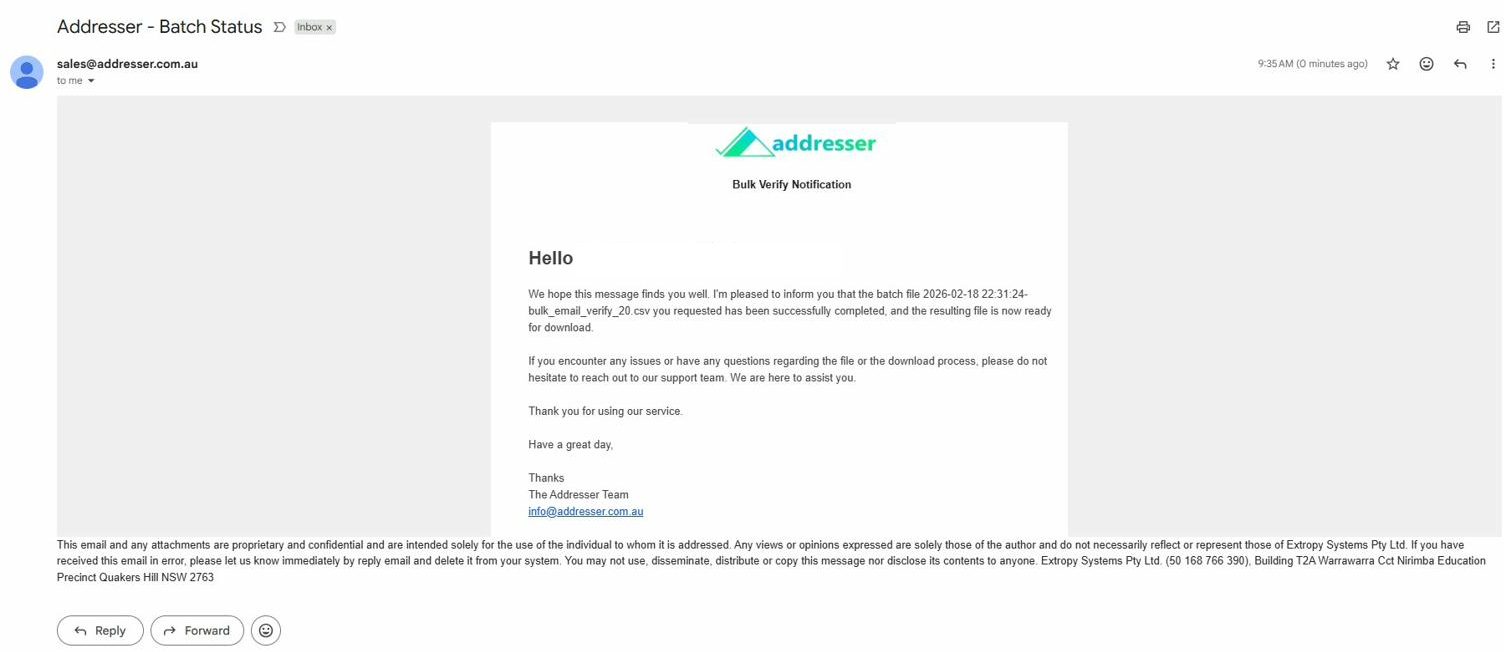
✅ Email 2 – Batch Complete & Ready to Download
Sent once processing reaches 100%. Notifies you that the results file is ready. Log in and go to the Recents tab to download it.
Downloading Your Results
Once you receive the completion email, follow these steps to retrieve your validated file.
Log In & Go to Bulk Email Validation
Sign in at app.addresser.org/signin then click Bulk Email Validation in the sidebar.
Open the Recents Tab & Find Your File
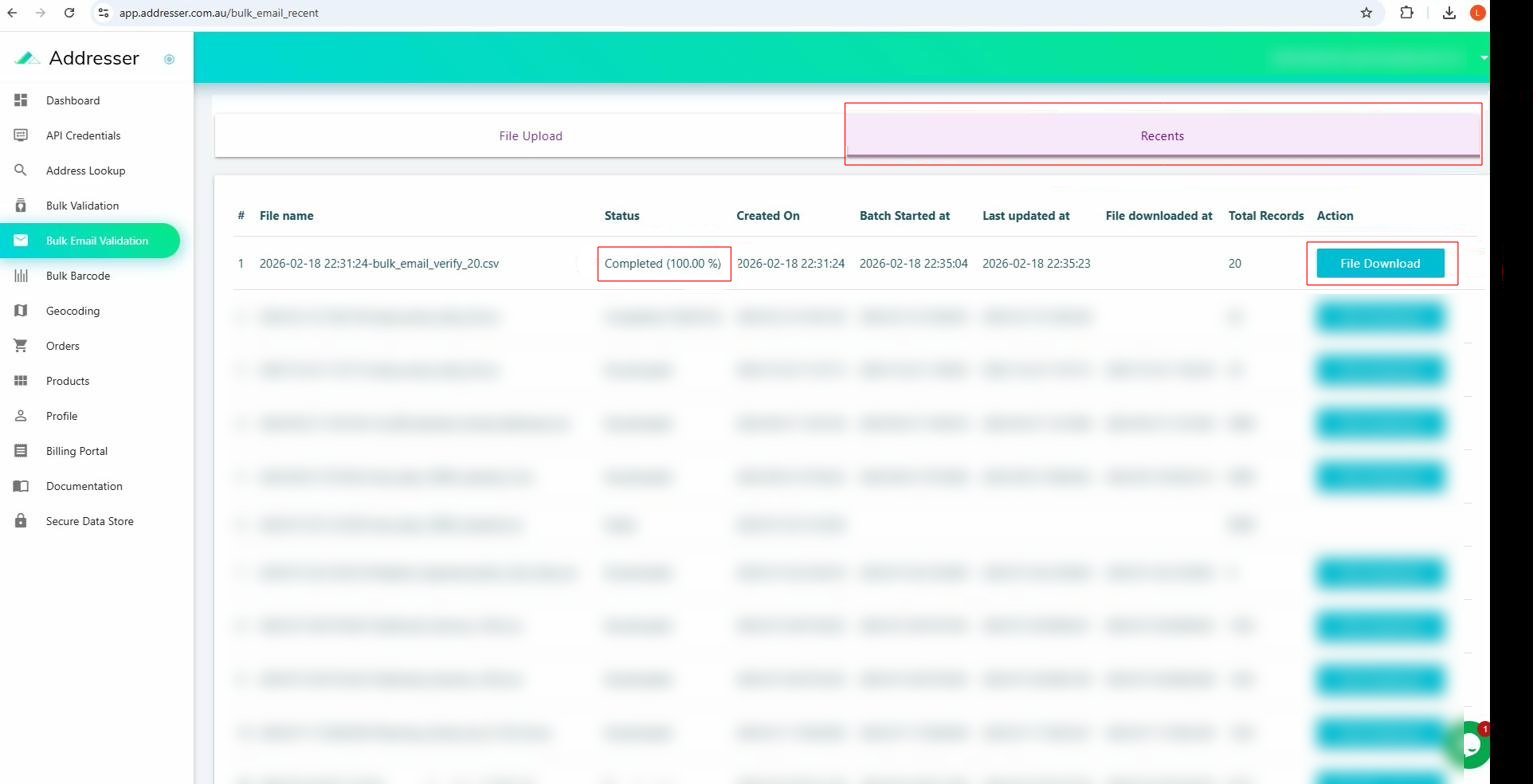
Click the Recents tab. Locate your batch — it shows status Completed (100.00%). The File Download button will be active.
Click File Download
Click the teal File Download button on the right of the completed row. Your browser will download a CSV prefixed with the batch timestamp (e.g. 2026-02-18 22:31:24-bulk_email_verify_20.csv).
Recents Table Column Reference
| Column | Description |
|---|---|
| File name | Timestamp-prefixed name of your original CSV |
| Status | Uploaded → Processing → Completed (100%) or Failed |
| Created On | When you submitted the file |
| Batch Started at | When background processing began |
| Last updated at | Most recent processing activity timestamp |
| File downloaded at | Timestamp of your first download |
| Total Records | Number of email rows in the file |
| Action | File Download button — active once Completed |
Understanding Your Results CSV
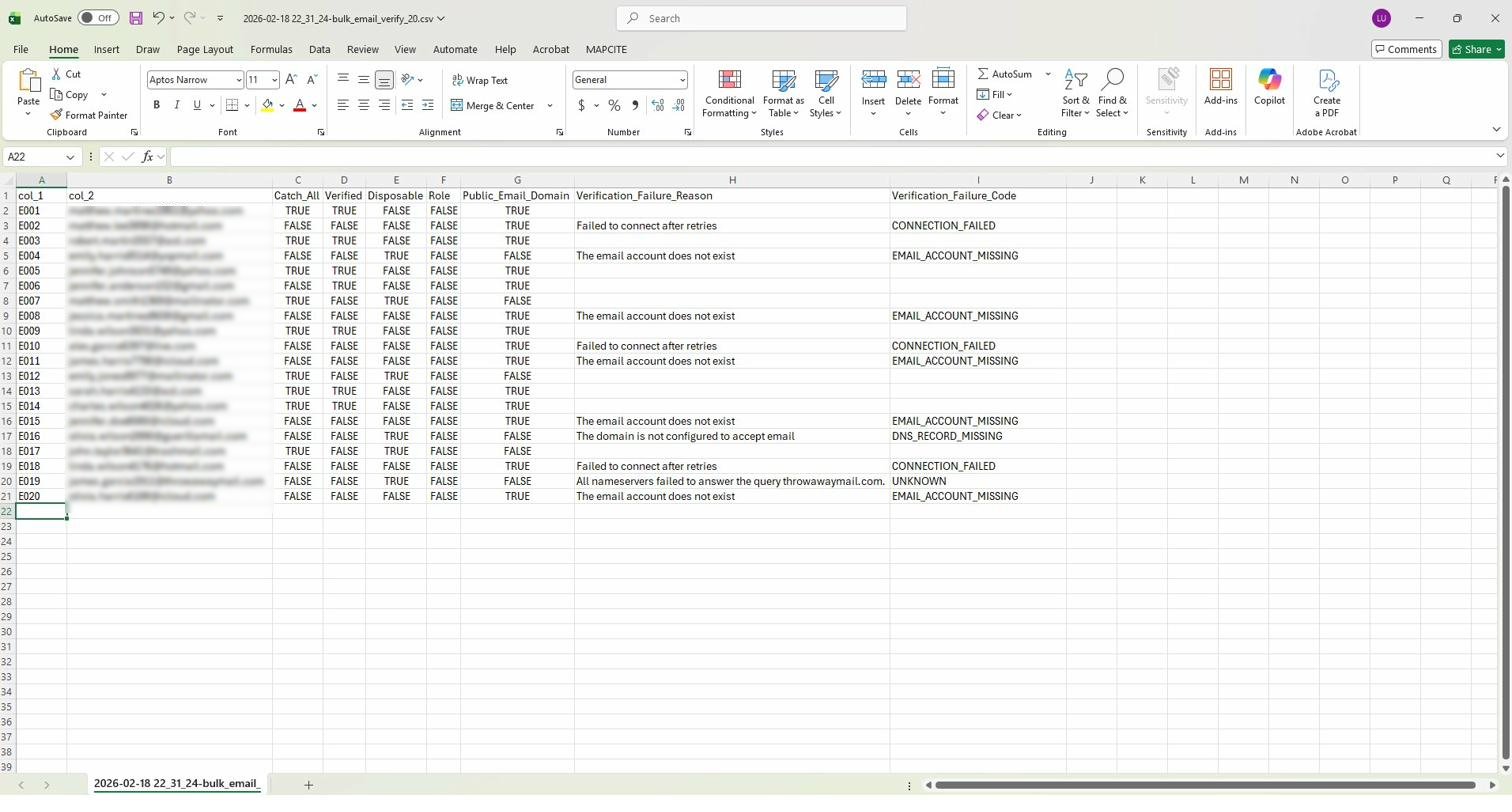
The downloaded file contains your original columns plus several new columns added by Addresser. Each row represents one email address and its full verification outcome.
Column Reference
| Column Name | Type | Description |
|---|---|---|
| col_1 | Text | Your original record identifier (e.g. E001). Use this to match results back to your source list. |
| col_2 | The email address validated, exactly as provided. | |
| Catch_All | TRUE / FALSE | TRUE – domain accepts all addresses; individual mailbox existence cannot be confirmed. Treat with caution. FALSE – normal per-mailbox verification was possible. |
| Verified | TRUE / FALSE | TRUE – address passed all checks; considered deliverable. FALSE – failed one or more checks. See Verification_Failure_Reason for details. |
| Disposable | TRUE / FALSE | TRUE – known temporary/disposable provider (e.g. mailinator.com, throwawaymail.com). Filter these from genuine marketing lists. FALSE – not a disposable domain. |
| Role | TRUE / FALSE | TRUE – role-based address (info@, support@, admin@) managed by a team rather than an individual. FALSE – personal mailbox. |
| Public_Email_Domain | TRUE / FALSE | TRUE – public provider such as gmail.com, yahoo.com, hotmail.com, aol.com, icloud.com. FALSE – private or corporate domain. |
| Verification_Failure_Reason | Text / Blank | Human-readable explanation of why verification failed. Blank when Verified = TRUE. Examples: "The email account does not exist", "Failed to connect after retries", "The domain is not configured to accept email". |
| Verification_Failure_Code | Code / Blank | Machine-readable error code. Blank when verified. EMAIL_ACCOUNT_MISSING – mailbox does not exist CONNECTION_FAILED – could not reach mail server after retries DNS_RECORD_MISSING – domain has no valid MX records UNKNOWN – indeterminate; nameserver query failed |
Recommended Actions on Your Results
Keep — Verified = TRUE & Disposable = FALSE
Highest-quality deliverable addresses. Prioritise these for email campaigns.
Review — Catch_All = TRUE
Cannot be definitively verified. Include or exclude based on your risk tolerance and sending reputation goals.
Remove — Verified = FALSE or Disposable = TRUE
Sending to these causes bounces or low engagement and damages your sender reputation.